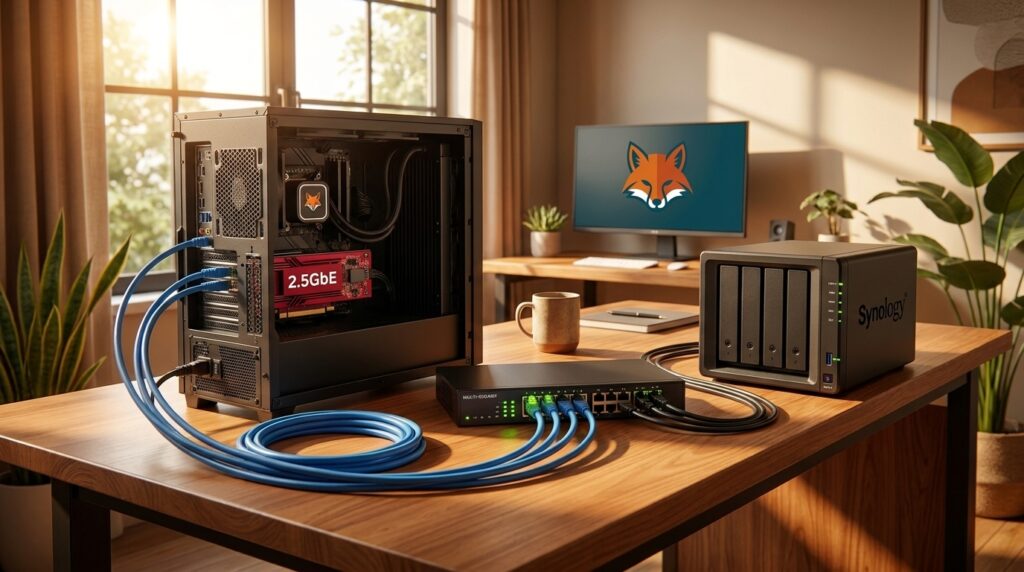
Achieving 2.5GbE Speeds on Your LAN Without Replacing Your Router is more accessible than you think. Upgrading to multi-gig local network speeds no longer requires buying a new router. With the right mix of adapters, switches, and simple configuration steps, most homes and small offices can hit 2.5GbE performance at a fraction of the cost.
This article walks through practical, budget-conscious ways to boost LAN throughput while keeping your current router. You will find clear options for adding 2.5GbE to desktops, laptops, and NAS devices. I’ll explain when a direct Ethernet link makes sense, when to add a small multi-gig switch, and when a USB or PCIe adapter is the fastest path to better transfers. Expect real-world setup tips, compatibility checks, and simple speed-testing guidance so you can verify results.
If you want noticeably faster file transfers, smoother backups, or better local media streaming without replacing your router, this guide shows the achievable routes. Read on to compare straightforward hardware choices and step-by-step configurations tailored to common home and small-business setups.

Achieving 2.5GbE Speeds on Your LAN Without Replacing Your Router — what 2.5GbE actually means
2.5GbE refers to Ethernet links that run at 2.5 gigabits per second. On paper that equals 2.5 Gbit/s or about 312.5 megabytes per second. Real-world throughput is lower because of packet headers, protocol overhead, and storage device limits. Compared with standard 1GbE (about 125 MB/s theoretical), 2.5GbE multiplies raw capacity by 2.5. That difference matters for large file transfers, backups, and multi‑user media streaming where sustained bandwidth matters more than burst speed.
LAN fundamentals: what a LAN is and why local speeds matter
A LAN is a local area network connecting devices inside a home or office. LAN traffic stays inside your network and does not traverse the internet. Local transfers use Ethernet and standard network protocols such as Ethernet framing, TCP/IP, and application protocols like SMB, NFS, or iSCSI. Faster LAN links reduce transfer time and lower file‑transfer latency. They also let multiple users share high throughput without saturating a single 1GbE link.
How network protocols and overhead affect apparent speed
Protocols add headers and require acknowledgements. TCP, the backbone of most file transfers, has window and congestion controls that affect throughput. Application protocols such as SMB or NFS add their own metadata and handshake steps. On a LAN, these protocol costs are smaller than across the internet, but they still reduce raw throughput. Enabling jumbo frames and using efficient drivers can reduce overhead and increase usable bandwidth.
Multi‑gig WAN vs. multi‑gig LAN: the difference
A multi‑gig WAN means your internet connection can exceed 1 Gbit/s. That does not automatically give devices multi‑gig local links. Your LAN must support multi‑gig ports or adapters to move data internally at higher rates. In many setups, the router provides the WAN link but is not the limiting factor for intra‑LAN traffic if a capable switch or direct link handles local transfers.
Why traditional routers can be a bottleneck
Consumer routers often limit speed in several ways:
- Router CPU and NAT/firewall processing are CPU‑bound and can throttle throughput when advanced features run.
- Many routers provide only 1GbE LAN ports or a built‑in switch limited to 1GbE per port.
- Software features like deep packet inspection, VPN, or QoS add processing overhead.
- Auto‑negotiation mismatches or older cables can force links down to 1GbE.
Because of those limits, replacing the router is not always necessary. Offloading local multi‑gig links to dedicated multi‑gig NICs, switches, or direct Ethernet connections can restore high LAN performance. Later sections show practical, cost‑effective ways to implement that without buying a new router.
| Option | Typical cost | Ease of installation | Compatibility | Performance benefits |
|---|---|---|---|---|
| PCIe adapters | $15–$40 | Moderate — requires a desktop with a free PCIe slot and driver install. | Best for desktops and servers; many NAS models accept PCIe NICs. | High — near-native 2.5GbE throughput with low CPU overhead. |
| USB adapters | $25–$40 | Easy — plug into USB-C or USB-A; may require drivers. | Ideal for laptops and desktops without PCIe; USB adapters add 2.5GbE quickly. | Good — practical multi-gig speeds, slight extra CPU load versus PCIe adapters. |
| Direct Ethernet connection (computer↔NAS) | $5–$20 (cable) | Easiest — connect devices directly; set static IP or use link-local addressing. | Works when both devices have 2.5GbE ports or adapters; ignores router limits. | Excellent for single device pairs — true multi-gig transfers without switch overhead. |
| Multi-gig switch | $80–$200 | Easy to moderate — plug devices and router into the switch; managed switches need config. | Best for multiple devices that need 2.5GbE; use a multi-gig switch to expand ports. | Scales multi-user performance; aggregates 2.5GbE links and centralizes traffic. |
Notes: descriptions reference PCIe adapters, USB adapters, multi-gig switch, and Ethernet connection to reflect common upgrade paths.
Practical, step-by-step advice to get 2.5GbE speeds on your LAN without replacing the router
Quick checklist before you start
- Confirm target devices (desktop, laptop, NAS). Prioritize the ones that move large files.
- Buy compatible hardware: PCIe adapters (cheap option for desktops), USB 2.5G adapters for laptops, or a small multi-gig switch to expand ports.
- Grab the right cable: Cat5e can work for 2.5GbE at short runs; Cat6 is safer for longer runs.
- Have basic tools: screwdriver for PCIe installs, access to device settings, and a speed test tool such as
iperf3.
Step 1 — Desktop: install a PCIe 2.5GbE adapter (cost-effective, high performance)
- Power down and open the case. Install a 2.5GbE PCIe NIC into a free PCIe x1 or x4 slot.
- Boot and install the vendor driver. Many inexpensive cards work well; prices can be around $15. Disable NIC power-saving in OS settings.
- If you plan direct links to a NAS, set a static IP or use link-local addressing.
- Verify link speed in the OS and check the port LED; run
iperf3to confirm multi-gig throughput.
Step 2 — Laptop: add 2.5GbE using a USB adapter (fast, plug-and-play)
- Choose a USB-C or USB-A 2.5G adapter, for example the Plugable USB-C/A 2.5G Ethernet Adapter.
- Plug directly into a USB 3.x port (avoid hubs). Install drivers if prompted.
- Confirm the OS reports a 2.5GbE link. Note: USB adapters use host CPU, so expect slightly higher CPU load than PCIe.
Step 3 — NAS and small-office setups
- Many NAS units ship with 2.5GbE onboard. If yours does not, check for a compatible PCIe slot or expansion module.
- For an inexpensive multi-device setup, add a small multi-gig switch (Unifi Flex Mini 2.5G or similar Ugreen models). Connect the switch to your router with a normal 1GbE uplink; local traffic between multi-gig ports stays on the switch.
Step 4 — Direct Ethernet connection when you only need one fast pair
- A direct computer↔NAS Ethernet cable avoids the router entirely. Set both devices to static IPs in the same subnet (for example 192.168.2.2 and 192.168.2.3) or rely on link-local addressing.
- This is the cheapest route: cable cost only, and it often delivers the cleanest, highest real-world throughput.
Configuration tips and small optimizations
- Enable jumbo frames (MTU 9000) on both ends for large file transfers, but test — some devices handle jumbo frames poorly.
- Update NIC firmware and drivers (TP-Link, Ugreen and others publish updates). Firmware updates can fix negotiation bugs.
- Disable offloading features only if you see worse performance; default settings are usually fine.
- If auto-negotiation fails, manually set the NIC to 2.5Gbps where possible.
Testing and verification
- Use
iperf3between two local devices to measure throughput. Run multiple parallel streams to saturate TCP windowing. - Also test a real file copy (SMB/NFS) to validate real-world speeds.
- Confirm OS shows 2.5GbE link and check switch/router LEDs.
Troubleshooting common issues
- Link falls back to 1GbE: check cable (Cat6 recommended), update drivers, and verify both ends support 2.5GbE.
- Speed below expectations: check storage read/write limits and CPU usage. USB adapters will use more host CPU than PCIe cards.
- Intermittent drops: test with a different cable and port; try a different adapter model.
Practical buying strategy
- Try a low-cost USB adapter first to validate benefits (around $30). If you need sustained multi-gig performance, invest in a PCIe NIC for desktops and a small multi-gig switch for multiple devices.
A final note from the field: as Patrick Campanale observes, “A LAN is a local area network, and you can easily achieve multi-gig speeds using various other methods instead of replacing your router.” Use inexpensive PCIe adapters, USB adapters, or a direct Ethernet connection to add 2.5GbE capability quickly, then scale with a multi-gig switch where needed.
Conclusion
The key takeaway is simple: you can get multi‑gig local speeds affordably and without swapping your router. Options include PCIe adapters, USB adapters, direct Ethernet links, and small multi‑gig switches. Each option balances cost, ease, and performance.
Use a cheap USB 2.5G adapter to trial benefits. For sustained transfers, install a PCIe 2.5GbE NIC in desktops. A direct computer-to-NAS cable delivers the cleanest single-pair throughput. Add a multi-gig switch to scale multiple devices.
This guide, Achieving 2.5GbE Speeds on Your LAN Without Replacing Your Router, focuses on practical steps you can take today. Follow the setup tips, test with iperf3, and keep drivers current. Small changes often yield large improvements in file transfers and local media streaming.
Start small, then expand.
LeisureQuest’s mission is to inspire people to explore and learn. Upgrading your network and tech gear is part of enjoying better leisure time. For more hands-on gear and gadget guides, visit LeisureQuest.
Do I have to replace my router to get 2.5GbE speeds on my LAN?
No. You can achieve multi‑gig LAN throughput by adding 2.5GbE PCIe or USB adapters, using a multi‑gig switch, or creating a direct Ethernet connection between devices. Replacing the router is only necessary if you need multi‑gig WAN ports or router-based multi‑gig LAN aggregation.
Which is better for a desktop: PCIe adapters or USB adapters?
PCIe adapters offer lower CPU overhead and more consistent sustained throughput, making them the better long‑term choice for desktops and servers. USB adapters are inexpensive and plug‑and‑play, ideal for laptops or quick testing. Expect USB adapters to use more host CPU during heavy transfers.
What cabling do I need for reliable 2.5GbE performance?
Cat6 is the safe choice for most runs. Cat5e can work at short distances, but Cat6 reduces the chance of negotiation fallback to 1GbE and supports better margin for interference.
How much will this cost to add 2.5GbE capability?
Expect roughly $15–$40 for PCIe NICs and $25–$40 for USB 2.5G adapters. Small multi‑gig switches typically range from $80–$200. A direct cable link costs only the price of the cable.
How should I test and verify multi‑gig performance?
Use iperf3 between two local devices to measure raw throughput, and perform a real file copy (SMB/NFS) to confirm real‑world speeds. Also verify the OS reports a 2.5GbE link and check adapter/switch LEDs.